
Prerequisites
- Basic Computer Navigation: Understanding how to navigate directories, open applications, and manage files on an operating system.
- Command Line Interface: Familiarity with opening and using the Command Prompt or PowerShell to execute basic commands.
- Docker Basics: Basic understanding of Docker, including how to pull images, run containers, and manage Docker environments.
Required Software
- Xentara minimum version 2.0
- Docker
Procedures
Step 1: Obtain the Docker-Compose File
Download the required docker-compose file for Xentara Inspector.
Step 2: Configure IP and Port
Edit the docker-compose file to configure the appropriate IP address and port settings for your environment.
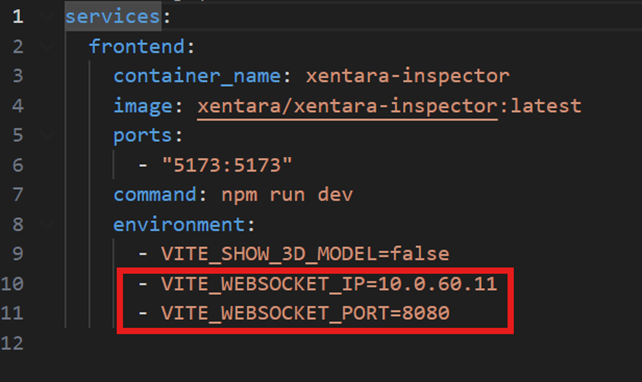
Step 3: Load the File on the Xentara Host System
Transfer the docker-compose file to the system where Xentara is installed and running.
Step 4: Run the Docker-Compose Command
Execute the following command to start the container
docker-compose -f <filename> up -dStep 5: Ignore the Timeout Message
A timeout message may appear during the process. This can be safely ignored.
Step 6: Verify the Container
Check the status of the containers using the following command:
docker ps -aYou can verify if a container is running or not.

Step 7: Start the Container
If the container is not running, start it manually using:
docker start <CONTAINER ID>Step 8: Access the WebSocket
Open your web browser and connect to the WebSocket URL:
https://<device-ip>:<port>(8080)Step 9: Accept the Certificate
When prompted, accept the security certificate to proceed.
Step 10: Open Xentara Inspector
In a new tab, navigate to the Xentara Inspector interface and start using the tool.
ip of the device: Port(5173)Recommended Further Reading
For more information, visit https://docs.xentara.io/